
Introduction :

The new version of our Facebook application has seen daylight!
It permits you to show your shops catalogue from any Magento or Prestashop Platform through your Facebook’s profile. (Available language : English, French, Spanish, German soon).
Which makes it possible for all your friends to discover your products on a daily basis outside of the traditional e-commerce website; as well let their friends know which products they liked.
In fact in this version we wanted to add the new functionality “I love it”, which will improve your shop’s audience over the Facebook network.
We think in order for an e-commerce website to start up, using social networks can make a lot of difference, specially with the SEO running behind. It permits to have a non negligible traffic towards your e-commerce website.
Finally we gave a name for this module, in order to notice it easily, Shop and Socializable were 2 important keywords to describe this application. So we called it: “Shopializable”.
Take a look on our demonstration available on our Facebook profile (shop tab) :

Summary :
Magento Installation
Prestashop Installation
Add a theme
Contribute, Improve the module
Acknowledgements !
Installation for Magento
The link between Facebook and your Magento shop is done using Magento’s integrated web services.
In order for Shopializable to work, you need to create a role, a user and then assign the user to the role.
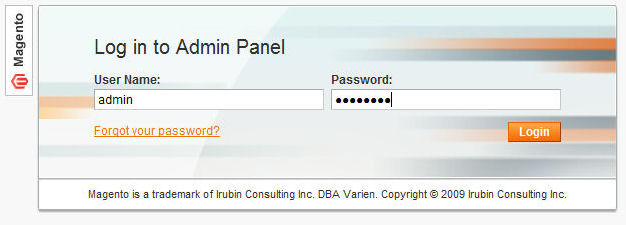
Connect to your magento back office.
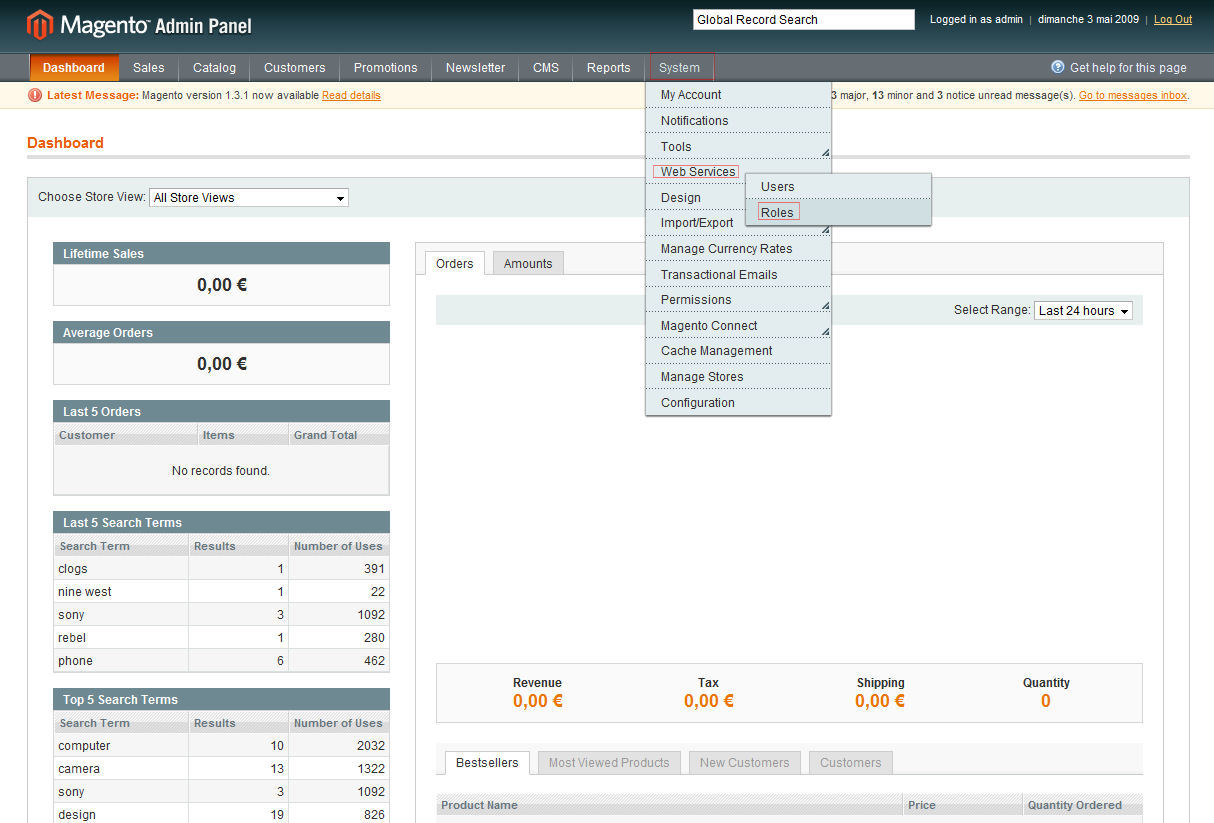
Navigate to System > Web Services > Roles.
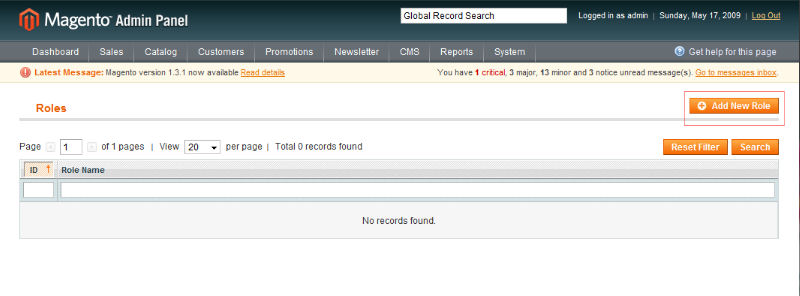
Click on New Role.
In the field “Role Name” enter “Shopializable” then click on “Role Ressources”

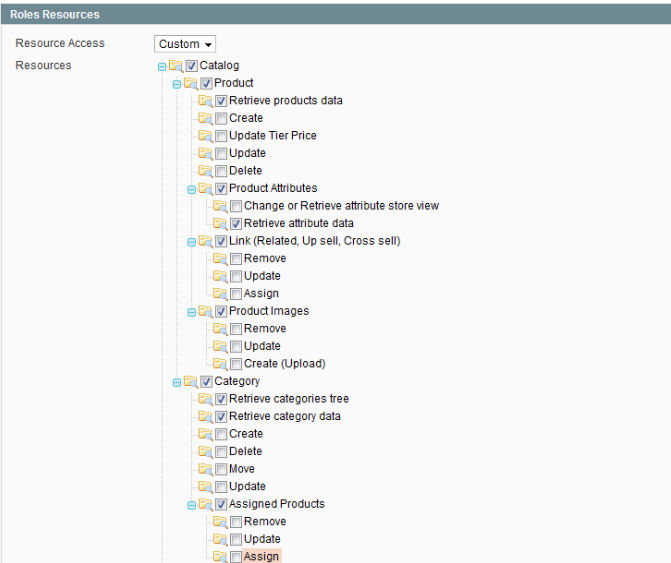
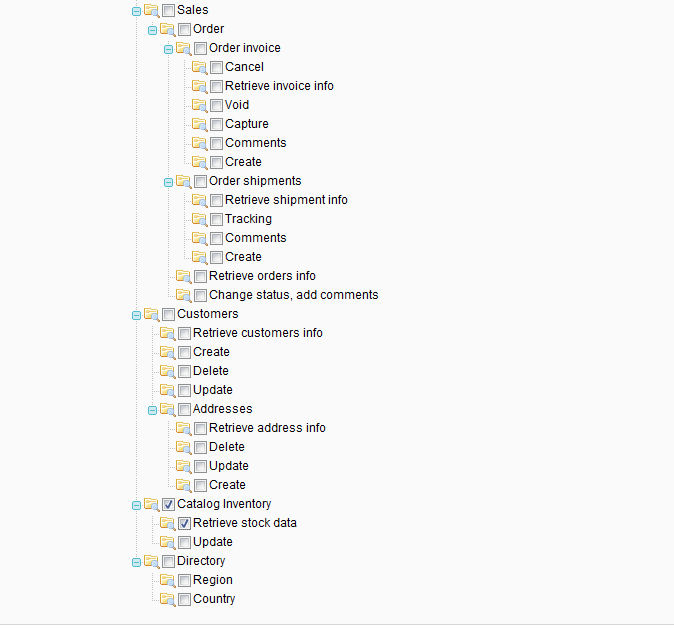
We’re going to go though the most delicate part of the installation; be cautious on not forgetting any check boxes or adding unnecessary ones.
In front of “Resource Access”, select the item “Custom “ from the drop down list then check the following items :
- Retrieve Products Data.
- Retrieve Attribute Data.
- Link: Only the Link box should be checked, all child items: “Remove, Update and Assign” should be unchecked.
- Product Images: Only the Product Images Box should be checked, all child items: “Remove, Update and Create” should be unchecked.
- Retrieve categories tree
- Retrieve category data
- Assigned Products: Only the Assigned Products should be checked, all child items “Remove, Update and Assign” should be unchecked.
- Retrieve Stock data (towards the end of the page).
Your selected items should look exactly like this one:
Don’t forget to save the Role you just created by clicking the following button.

Now we have to create the user and assign it to the role we just created.
Navigate to “System” > “Web services” > “Users”.
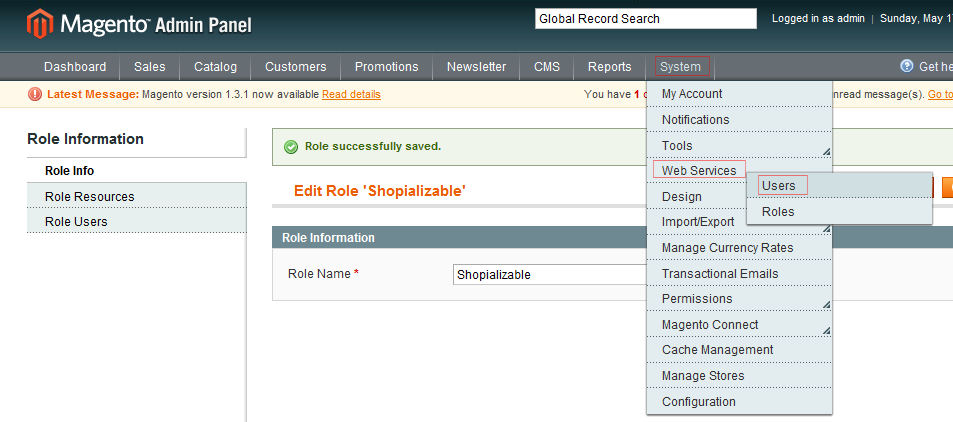
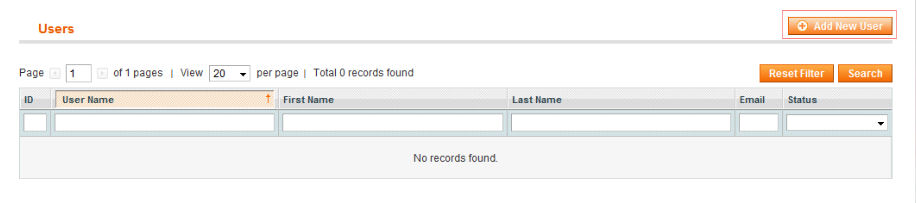
Then click on “New user”
Fill the form while writing down somewhere the Username and API Key. These logins will be asked during the Facebook application installation.
Then click on “User Role” (on the left pane).
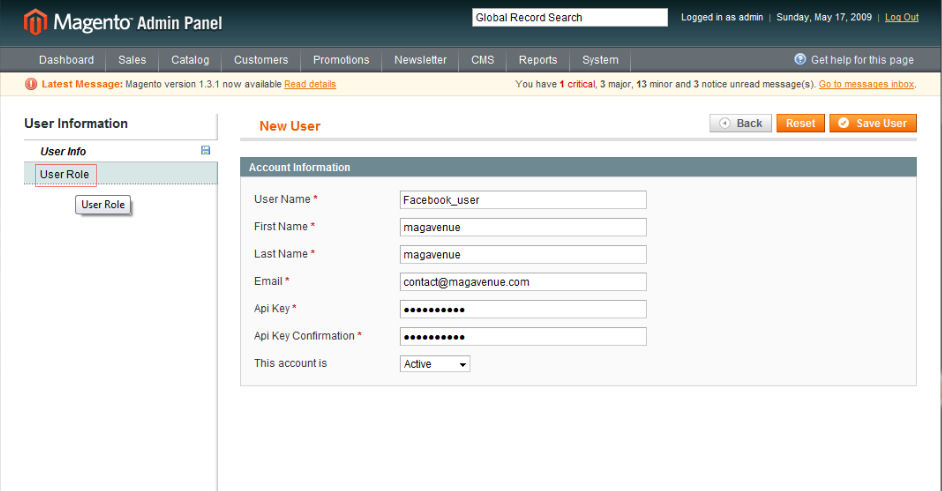
Select “Shopializable” (or the Role name you just created) and click “Save User”.
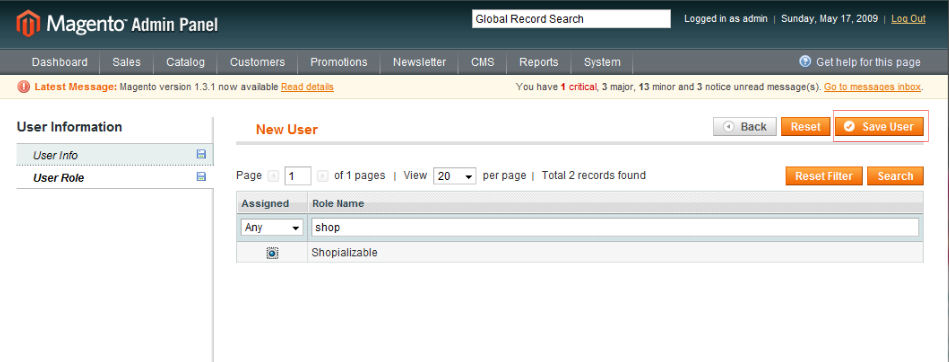
That’s all you need to do on your Magento website.
Installation of Shopializable on Facebook (Magento)
Let’s go through the Facebook installation of Shopializable on your profile.
Connect with your Facebook account and then click here , to add the application.
Click on “Go to Application”.

You should land on a message like this:
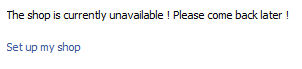
Click on “Set up my shop “, a window should ask you for authorization Click on “Allow”.
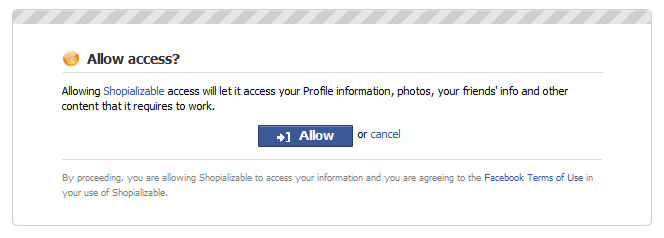
You’re now on the settings page of Shopializable.
First we’re going to configure the application to access the Magento Shop.
In front of “Which system are you using” select Magento, then click on “Submit!”

Don’t click on OK yet, it’s for the next step.”
Fill the page form depending on what you want.
In order for the application to communicate with your shop : you have to fill in the login and password fields with the exact logins you used for the User you created earlier (Username and API KEY).
Enter the right URL address for your Magento shop. If the link entered is incorrect the application will not work. (The absolute address should be entered without index.php at the end”.
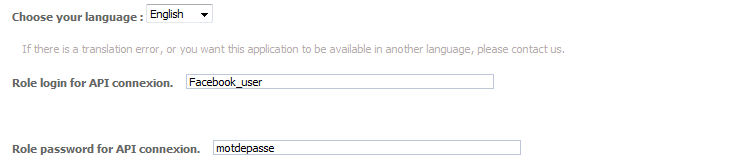
Finally validate the form.
At this moment you can request a generation of your products catalogue. (Think about verifying whether the username and password you entered are correct)

The generation isn’t done automatically in order to relieve our servers. The generation will be done on a time interval of 24 hours maximum. (Once the generation is done, you won’t need to generate again, unless you update your catalogue).
To make the Facebook application available on your profile:
Navigate to your profie, and click on the “+” button and then click on “Shop”
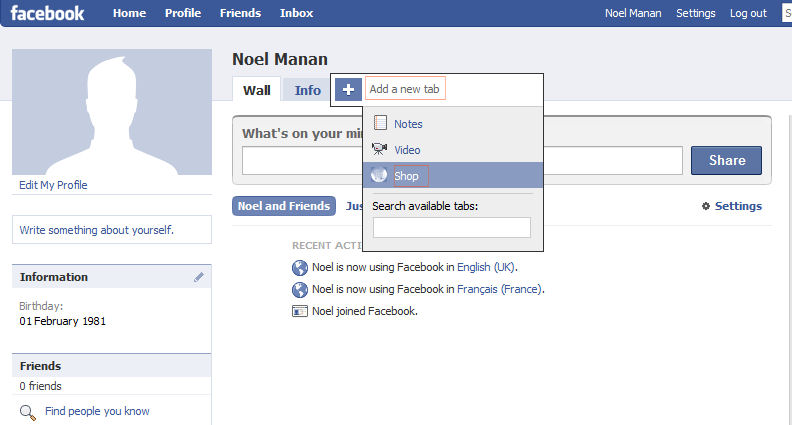
Shopializable is installed and in its right place on your Facebook profile, think of configuring the different settings.
For the best experience, we’d advise you to use a theme (template), these are available here. For more information, check the “Add a theme” part of this tutorial.
Prestashop Installation
The installation of the module only takes a few seconds.
Download the module from our shop.
Once the download is done, decompress the folder while placing it in your “modules” folder in your Prestashop source files. (Verify that the files are in a folder “fb_link” and not in a child folder; the files should be in /modules/fb_link/*files).
This is it for the module installation. No need for an installation in the back office of Prestashop.
Installation of Shopializable on Facebook (Prestashop)
Click on this link to add the application.
Click on “Go to Application”.
You should land on a message like this:
Click on “Set up my shop” , a window should ask you for authorization. Click on “Allow”.
You should be now on the settings page of Shopializable.
Fill the different fields of the form.
Enter the right URL address for your Prestahop shop. If the link entered is incorrect the application will not work.
You can click on “Submit!” (Bottom of the page) once the fields are entered.
Now to add the application to your Facebook profile, click on the “+“ button and then click on “Shop” (when you’re on your Facebook Profile page).
Shopializable is installed and in its right place on your Facebook profile, think of well configuring the different settings.
For the best experience, we’d advise you to use a theme (template), these are available here. For more information, check the “Add a theme” part of this tutorial.
Adding a theme
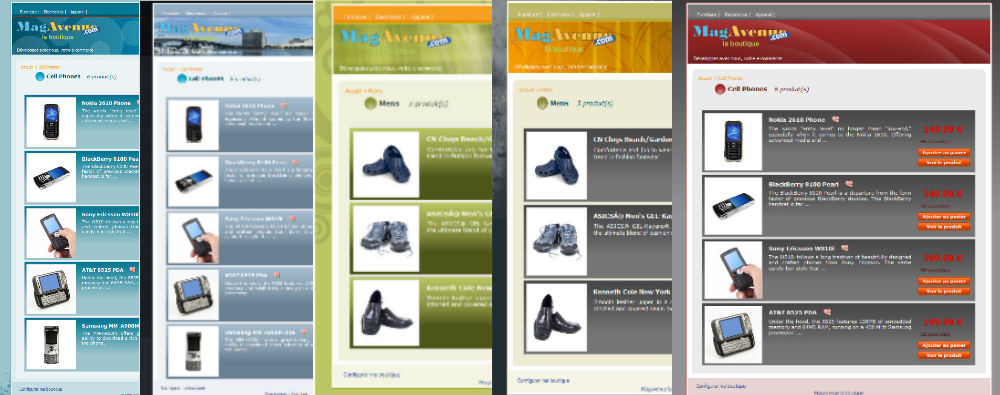
Adding a theme on your Shopializable application is done with a few clicks. Go to our shop and choose a theme. Be sure to put the same link you provided in the Facebook application to for your e-commerce website.
Why aren’t the themes free ?
Most of our themes are going to be sold for 10€. This will permit you to have a better looking, desiring Shopializable application; at the same time will help us maintain the application (which is taking more and more time) and contribute to the payment of our hosting providers.
We thank everyone that buys a theme, permitting us to continue the adventure with you.
Contribute, Shopializable is your application !
We’re open for all suggestions and bug reports.
Do not hesitate to contact us for more functionalities or new themes.
Acknowledgments :
The Magavenue team would like to say thank the people who helped and encouraged the building of this application and especially to :
- Rodrigue Hajjar (development)
- Rafael Rivera (Spanish translation)


Retour de ping : Magento und PrestaShop für Facebook - COMSOLIT Blog
Hello,
I am getting this error when I try to install this on my website.
Fatal error: Cannot use string offset as an array in /homepages/32/d144706452/htdocs/shopializable/beta/footprints/config.php on line 26
Hi,
Magento or Prestashop ?
On a Facebook page or a profile ?
Retour de ping : Facebook für Magento oder Prestashop » Von Michael Karl » Magento
Hello,
I’ve installed everything and its now available on the profile but can this be added to a business page as well?
Thanks
Hello,
I’ve installed everything and its now available on the profile but can this be added to a business page as well?
Thanks
Hi! I am trying to setup the application in Facebook. But after I allowed the application, I receive the following Error:
Warning: require_once(lang/lang_de.php) [function.require-once]: failed to open stream: No such file or directory in /homepages/32/d144706452/htdocs/shopializable/beta/footprints/reglage.php on line 14
Fatal error: require_once() [function.require]: Failed opening required ‘lang/lang_de.php’ (include_path=’.:/usr/lib/php5′) in /homepages/32/d144706452/htdocs/shopializable/beta/footprints/reglage.php on line 14
Am I doing something wrong?
Have a look at our new release available at : http://www.magavenue.com/blog/application-facebook/shopializable-facebook-installation