
Si vous souhaitez installer un nouveau thème ou template pour votre boutique sous Magento, deux solutions s’offrent à vous :
- Vous trouvez un thème disponible sur Magento-connect et utilisez celui-ci pour l’installer (voir notre article : Installation d’une extension avec Magento-connect).
- Vous copiez manuellement, les fichiers du thème Magento que vous souhaitez installer, dans les répertoires correspondant. C’est cette dernière solution, que nous allons étudier.
Comment Magento gère les thèmes (ou templates) :
La gestion des thèmes sous Magento est particulière, en effet lors du démarrage de votre boutique, Magento charge le thème par défaut et charge ensuite par dessus, le thème que vous avez définit. Sauf si vous avez remplacé le thème par défaut, par le thème de votre boutique.
Cette façon de fonctionner, vous permet ainsi de pouvoir modifier très simplement, votre thème. Il vous suffit de le créer ou de créer seulement la partie de thème que vous souhaitez modifier, de la définir dans l’administration de Magento et celle-ci sera chargée par dessus la configuration par défaut au démarrage de votre boutique, pour venir remplacer la partie du thème par défaut.
Trois dossiers sont utilisés par Magento pour la gestion de ces thèmes :
- Le dossier template contient tous les éléments HTML de votre thème (app/design/frontend/default/le_nom_de_votre_theme/template),
- Le dossier layout contient les fichiers XML de configuration et de positionnement des éléments de votre thème (app/design/frontend/default/ le_nom_de_votre_theme/layout),
- Enfin, le dossier skin contient plusieurs sous-dossiers avec les images, les feuilles de styles et les fichiers javascript de votre boutique (skin/frontend/default/le_nom_de_votre_theme)
Dans notre cas nous allons installer le thème appelé : “Linen”, qui est gratuit et que vous pouvez trouver ici : https://www.magthemes.com/free-themes/Linen-Theme_1.php. Mais le principe est le même avec tout autre thème.
Une fois le fichier zip du thème Magento téléchargé, décompressez-le. Ouvrez le dossier : “LinenTheme_2.0?, vous retrouvez nos deux dossier : “app” et “skin”.
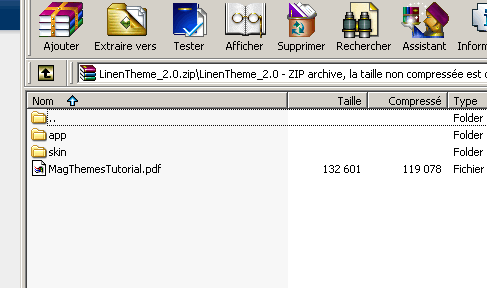
Il vous suffit de copier ces deux dossiers à la racine de votre site Magento.
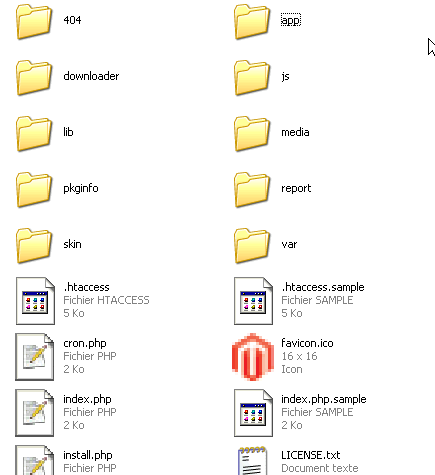
Si vous retourner dans nos 2 dossiers de stockage des thèmes, vous vous apercevrez qu’un nouveau dossier a été créé : app/design/frontend/default/linen et skin/frontend/default/linen.
Il nous reste plus qu’à définir notre nouveau thème dans l’administration de Magento.
Comment définir notre nouveau thème dans l’administration de Magento
Rendez vous dans l’administration de votre site Magento dans le menu “Système > Configuration > Design”.
Vous devez indiquer en premier sur quelle boutique vous souhaitez travailler, il suffit de la choisir dans la zone en haut à gauche : Portée de la configuration courante. Si vous laissez configuration par défaut, tous vos sites (si vous en avez plusieurs) seront impactés par votre nouveau thème.
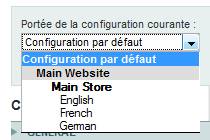
Une fois le site choisit, il faut indiquer votre nouveau thème, dans la partie de droite :
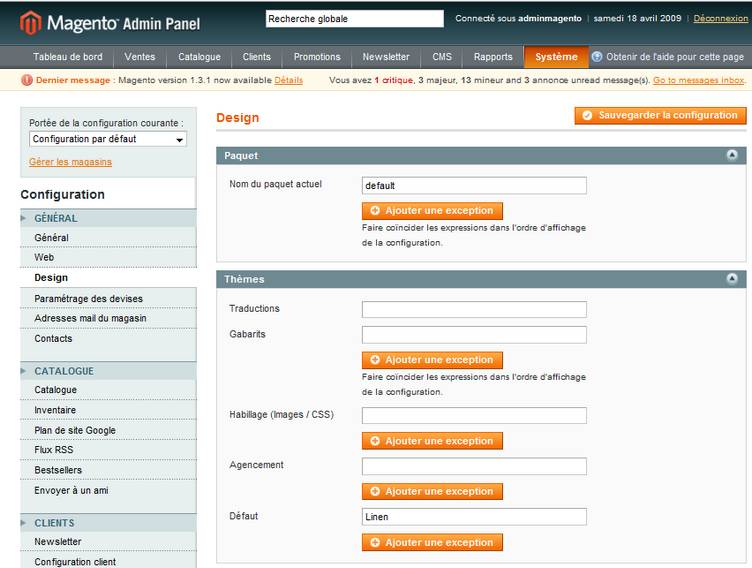
Il vous suffit d’indiquer dans la zone Défaut, le nom de votre nouveau thème : Linen.
Comment rafraîchir le cache de votre boutique Magento :
Il vous faut maintenant mettre à jour le cache de votre boutique Magento :
Allez dans le menu « Système > Gestion du cache »
Dans le premier champ : Tout le cache, choisissez : Rafraîchir.
Le cache de votre boutique est ainsi mis à jour et le nouveau thème de votre boutique peut s’afficher.
Voilà, votre nouveau thème Magento est maintenant complètement installé. Vous pouvez utiliser cette méthode relativement simple avec tout autre thème.
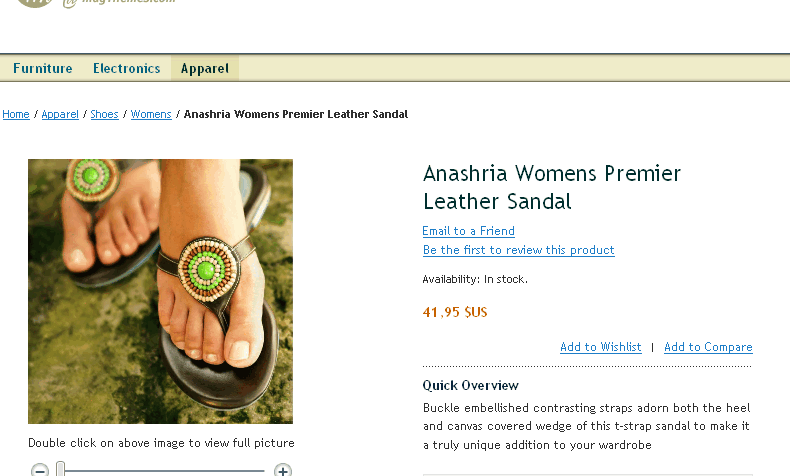
Voila le résultat !


Retour de ping : Premiers pas avec Magento 1.4.0.1 | Guillois.com
sujet intéressant , merci . Très bon CMS d’e-commerce
Trés bon tuto !!
Manque plus que l’installation des modules …