
Un bon moyen de booster vos ventes est de mettre votre catalogue produits sur un comparateur de prix comme : LeGuide.com.
Il existe pour cela un module gratuit que vous pouvez télécharger sur ce site dans la rubrique « Le guide Shop ».
Ces comparateurs ont en général un gros trafic et vous permette d’être placé aux côtés des ténors du web. Toutefois il faudra que vos produits soient assez rare sur la toile ou que vos prix soient assez bas pour ne pas vous faire éclipser !
Avertissement
Si vous souhaitez installer ce module, et afin que celui-ci fonctionne, il est nécessaire que l’url rewriting (la simplification des adresses Internet) de votre boutique soit activé. Si ce n’est pas le cas, il vous suffit de vous rendre dans la partie administration de votre boutique, puis dans l’onglet Préférences et de cocher “oui†en face des URL simplifiées.
Il faudra par la suite renommer le fichier htacess.txt de votre installation en .htaccess à l’aide de votre client Ftp.
Attention : Cette manipulation peut entraîner l’indisponibilité de votre boutique (page vide…). Si jamais vous avez ce problème, renommez le fichier .htaccess en htaccess.txt et cochez “non†dans la partie administration de votre boutique en face de Url simplifiées dans la partie préférences.
Installation
L’installation est très simple comme pour la plupart des modules Prestashop :
- Télécharger le module sur ce site, puis décompressez le, avec un logiciel comme 7-zip (disponible dans la rubrique “Outils†du blog).
- Déplacer le dossier “guide†généré par la décompression, dans le dossier modules de votre installation Prestashop.
- Dans la partie administration de votre boutique Prestashop, sélectionnez l’onglet modules et cliquez sur Installer en face de “Guide produitsâ€.
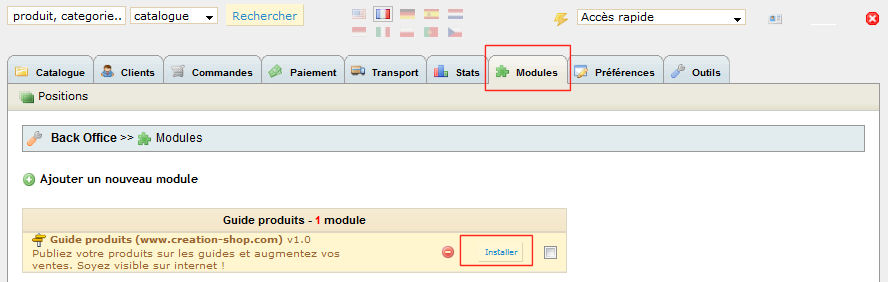
Configuration du module
C’est à partir de ce moment que cela se corse !
Cliquez maintenant, sur le bouton “Configurez†à côté de “Désinstallerâ€, toujours dans notre onglet Modules.
Vous obtenez la page de configuration de notre module :
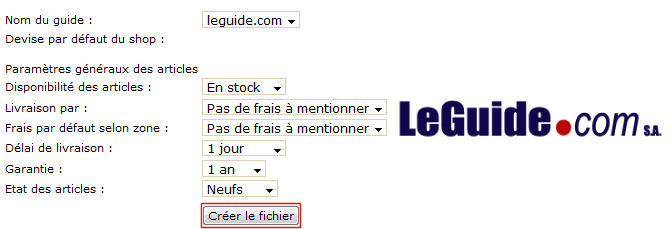
Remplissez les différents champs et cliquez sur le bouton Créer le fichier. A ce moment là , un petit texte devrait apparaître dans une zone textarea :
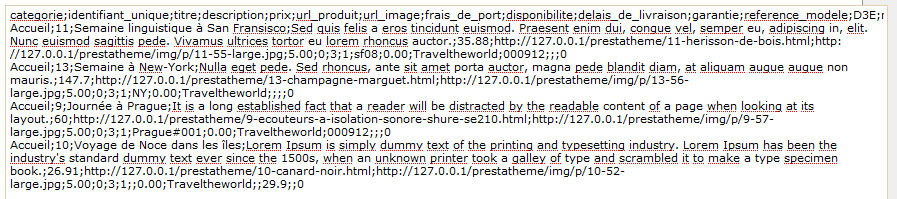
Copiez l’ensemble de cette zone (Ctrl+a) et coller la dans un éditeur de texte (comme le bloc note).
Enregistrer le fichier et nommer le : “leguide.txtâ€.
En utilisant votre client ftp (comme Filezilla disponible dans la rubrique “Outils†du blog) placez ce fichier dans le dossier : Guide, que nous avions transféré précédemment dans votre installation Prestashop (prestashop/modules/guide/).
Inscription sur le site : LeGuide.com
Pour que le module puisse communiquer avec le site LeGuide.com, vous devez être inscrit sur celui-ci. Pour cela rendez vous sur la page d’inscription puis renseignez les différents champs.
Une fois l’e-mail de confirmation reçu et le deuxième formulaire de renseignements complété, vous pourrez ajouter votre boutique.
Cliquez alors sur “Ajouter un site†:
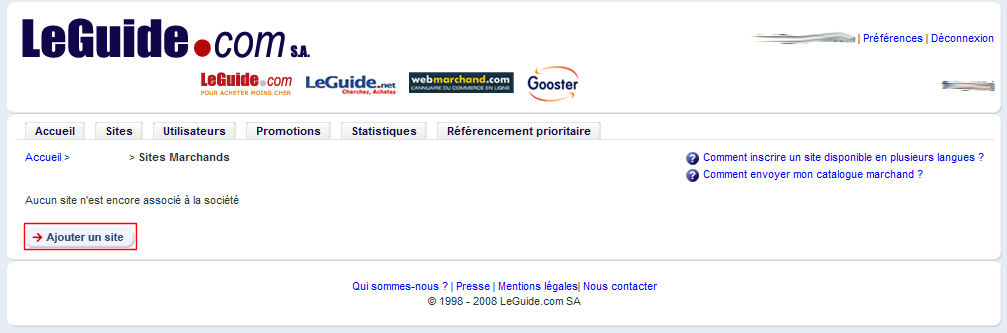
Une fois le site ajouté et validé par l’équipe du comparateur, vous n’aurez qu’à cliquez sur “Mettre à jour les informations†dans l’onglet Sites, en face de votre boutique :
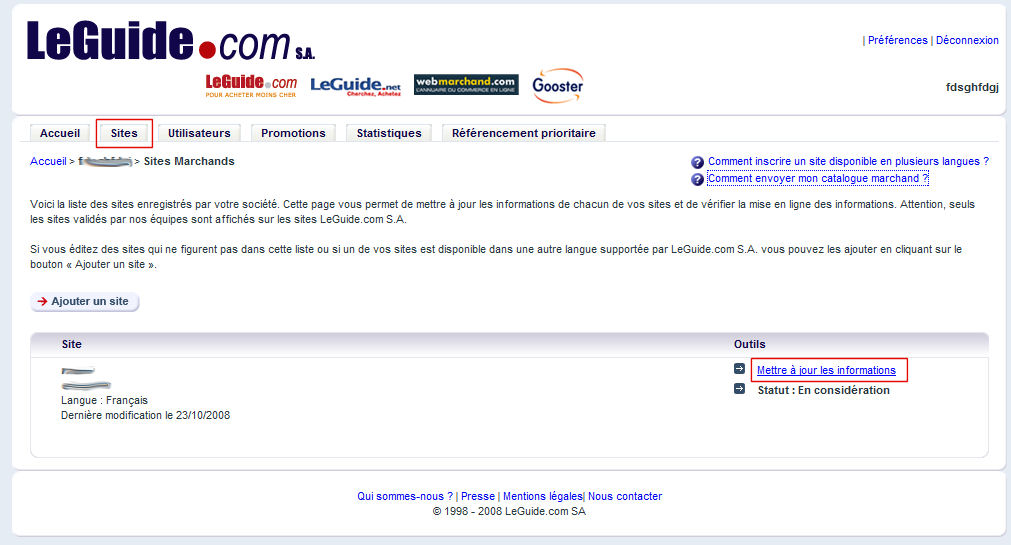
Rendez-vous alors dans la rubrique “Liens†que vous trouverez dans “Généralâ€.
En face du champ : “URL du catalogue produitâ€, rentrez l’adresse du fichier texte que nous avons créé précédemment (Si vous avez suivi notre tutorial : https://monsite.com/modules/guide/leguide.txt).
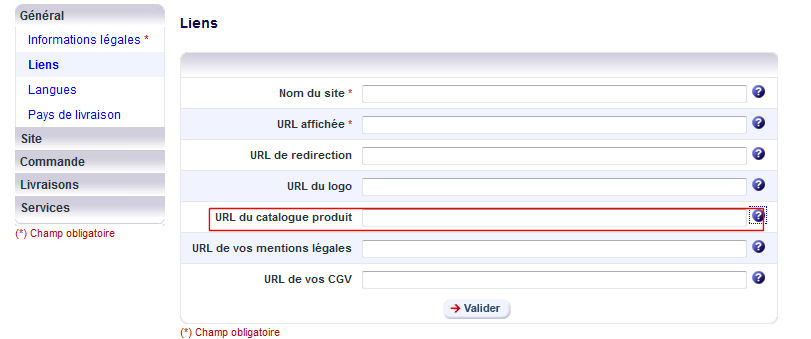
Remplissez par la suite soigneusement les différents champs des autres formulaires. Vous devez soigner particulièrement les informations que vous aller rentrer dans ces champs, car elles devront donner confiance aux visiteurs qui vous découvrirons sur le site.
Une fois ces informations validées, vos produits pourront être catalogués sur le site : LeGuide.com.
Pour les plus chevronnés
Si vous souhaitez personnaliser la façon d’afficher vos produits sur le site : LeGuide.com, vous pouvez vous rendre sur cette page. Vous pourrez ici, comprendre la signification de chaque champs généré par le module et donc savoir comment les modifier.


ça marche pour les sites en flash????
Bonjour Christelle,
Tout dépend de ce que vous appelez site en flash ! Ce module est fait pour les boutiques à partir de Prestashop.
Si votre template (thème) est fait en Flash, cela ne pose aucun problème !
merci je viens de m’inscrire sur prestashop!
Bonjour,
Un module similaire vient d’être mis à disposition par la PSFTeam (Communauté francophone de PrestaShop).
Le module proposé ici exporte en CSV, celui de de PSFrance exporte en XML… Voilà, donc a vous le choix!
Sinon, c’est une très bonne solution que de mettre ses produits sur un comparateur… Surtout pour les petites boutiques qui ont du mal à se faire référencer sur Google!
bonjour
j ai essayé de télécharger le module mais il y a une erreur 404 page vide
Bonjour,
En effet, le module est apparemment devenu payant disponible ici : http://prestashop.free.fr/shop/category.php?id_category=7