
Pourquoi sauvegarder sa base de données ?
Des accidents peuvent arriver dans la vraie vie comme dans le commerce en ligne. Si l’on ne peut pas casser la vitrine de votre ecommerce, il peut par contre arriver toutes sortes de choses à votre base de données. Que ce soit la simple perte de données ou une mise à jour qui se passe mal, il est important de sauvegarder votre base régulièrement.
Ainsi si vous avez un problème d’hébergement, qu’un problème apparaisse dans votre base, ou tout simplement que vous ayez effacé des articles de votre catalogue, il vous suffira de restaurer une ancienne sauvegarde.
Si, sauvegarder régulièrement sa base de données peut s’avérer fastidieux et dangereux (risque d’oubli…), utiliser un module pour sauvegarder régulièrement sa base de donnée peut être une bonne chose !
Pour cela Julien Breux de PSfrance a développé un plugin fort utile pour sauvegarder une base de données Prestashop. Nous allons vous détailler son installation afin que celui-ci sauvegarde votre base régulièrement.
Tout d’abord rendez-vous sur l’article du forum pour télécharger le module (vous devez être inscrit).
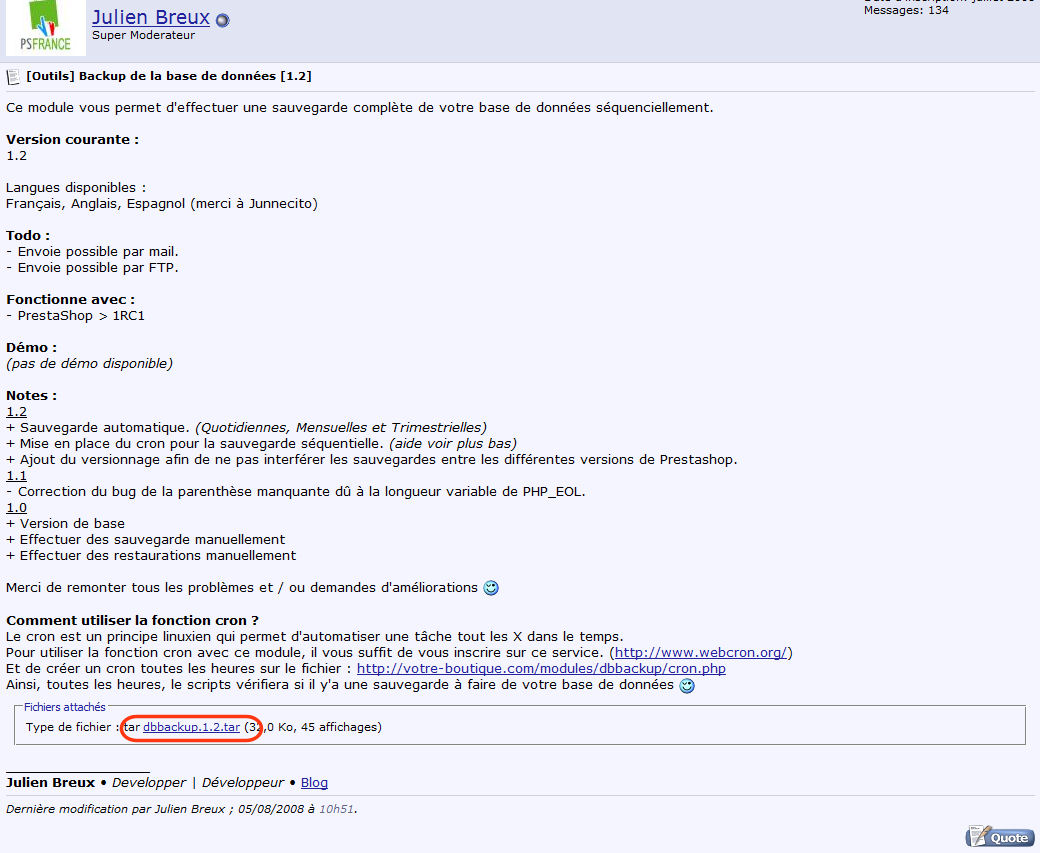
Nous allons détailler dans les lignes suivantes comment installer celui-ci et comment programmer son exécution automatique.
Installation du module
Décompressez l’archive à l’aide d’un logiciel tel que 7zip. Puis déplacer le module dans le dossier « modules » de votre installation Prestashop à l’aide de votre client ftp (comme filezilla).
Rendez-vous dans la partie administration de votre boutique. Naviguez vers l’onglet Modules puis cliquez sur le bouton « Installer » en face de « Sauvegarde base de données » dans la catégorie « Tools ».
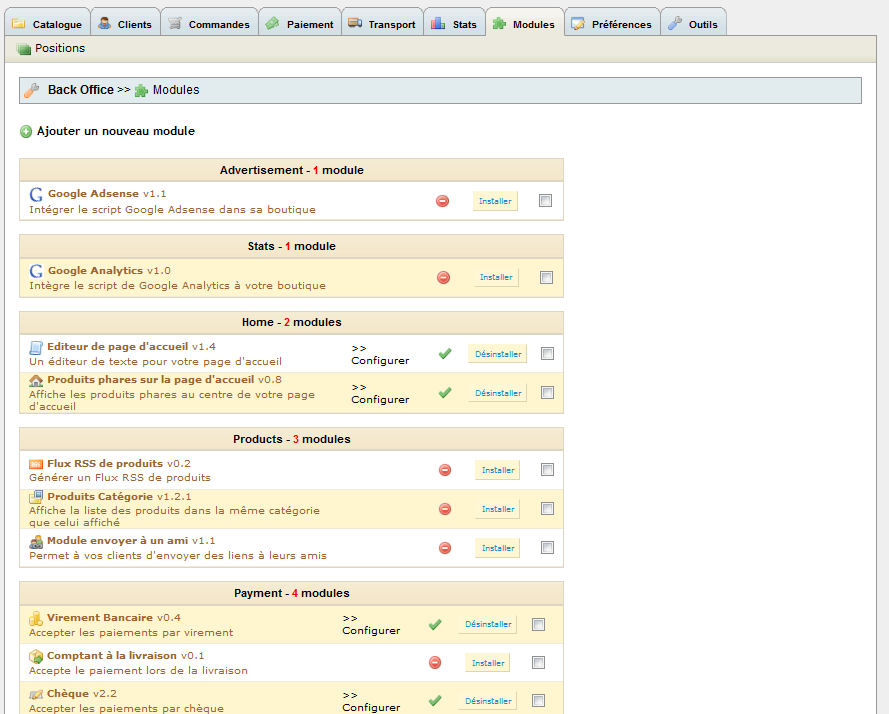

Votre module est alors installé.
Configuration du module
Retourner au niveau du module, puis cliquez sur le lien « Configurez ».
Vous devriez obtenir une page comme celle-ci :
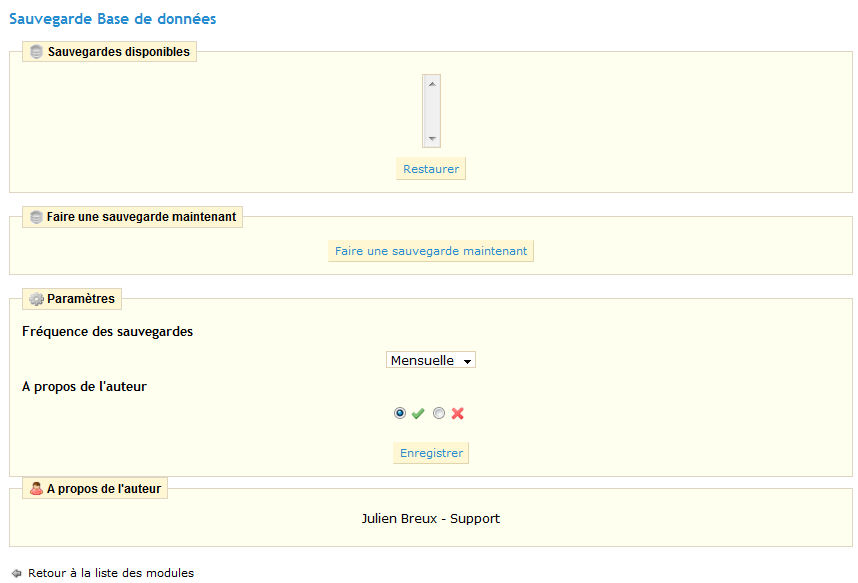
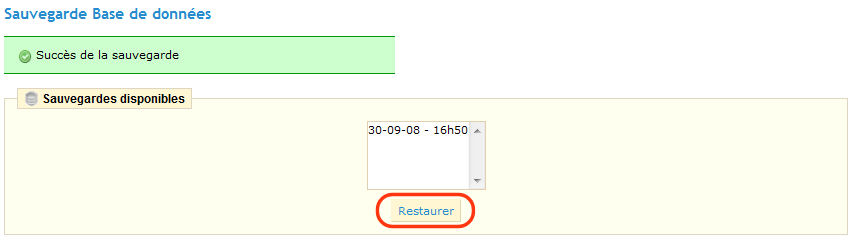
La 1ère étape à éffectuer lorsque vous aurez installé ce plugin est de faire une sauvegarde en cliquant sur « Faire une sauvegarde maintenant » (dans la 2ème partie de la page).
La première partie de la page, permet de restaurer une ancienne copie de votre base de données. Ainsi lorsque vous aurez créé des sauvegardes, vous pourrez ici sélectionner une ancienne sauvegarde et en cliquant sur « Restaurer » pour vous retrouver à la date de celle-ci.
La dernière partie de la page vous permet de choisir la fréquence des sauvegardes (nous vous conseillons de choisir quotidienne puis de cliquez sur Enregistrer).
Installation d’un Cron
Le cron est un programme propre aux systèmes libres (https://fr.wikipedia.org/wiki/Cron) permettant d’exécuter une tâche régulièrement.
Si votre hébergeur le permet vous pouvez programmer un cron pour qu’il lance la sauvegarde automatiquement. Il vous suffit pour cela de paramétrer l’exécution automatique du fichier, chaque jour : cron.php qui se trouve dans le dossier : modules/dbbackup/ de votre boutique Prestashop.
Si vous ne savez pas comment installer un Cron, ou que votre hébergement ne le propose pas, vous pouvez alors utiliser le service https://www.webcron.org, qui va vous permettre de lancer automatiquement et à date régulière un fichier sur votre site.
Pour cela inscrivez vous sur ce site : https://www.webcron.org/inscription.php, remplissez les différents champs. Vous devriez alors recevoir un mail de confirmation (si ce n’est pas le cas, vérifiez votre boîte de spams).
Une fois votre compte activé, identifiez vous sur le panel de droite.
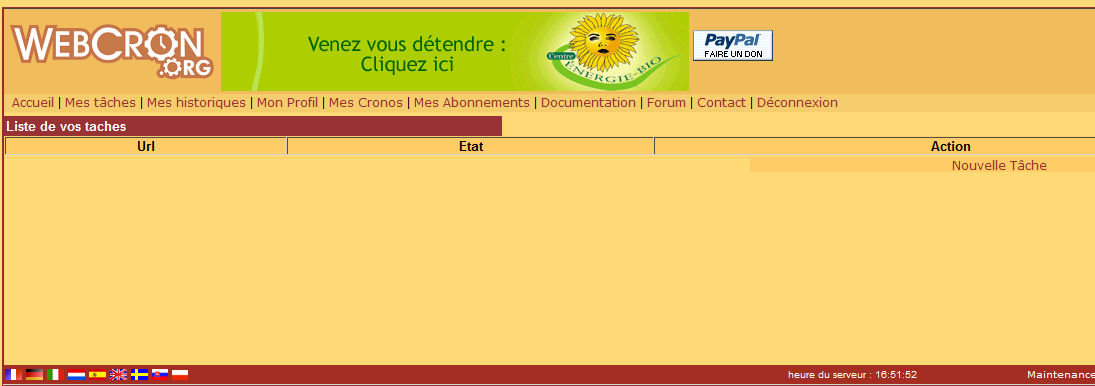
Rendez-vous dans la partie « Mes tâches » en utilisant le menu du haut. Puis cliquez sur « Nouvelle tâche ».
Remplissez le formulaire de la façon suivante :
UrlUrl : https://votre-boutique.com/modules/dbbackup/cron.php (en remplaçant votre-boutique.com par votre adresse)
Heure : 0
Vous pouvez laisser les autres champs inchangés.
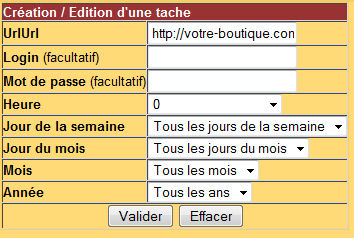
Enfin cliquez sur valider. Vous n’avez alors plus qu’à cliquez sur Activer dans le tableau sur la ligne concernant votre site. Votre Cron est près à fonctionner.

Conclusion
Votre boutique est maintenant protégée contre les modifications inattendues de votre base de données.
Pour pallier une défaillance de votre hébergeur, il est important pour vous de récupérer régulièrement sur votre ordinateur une copie de sauvegarde de votre base (elles se trouvent dans : « modules/dbbackup/dbcopies/ »).
ATTENTION : Restaurer une sauvegarde n’est pas anodin, vous perdrez toutes les opérations effectuées sur votre eboutique depuis (vos dernières commandes, vos derniers articles…). C’est pourquoi vous devez réfléchir à deux fois avant de restaurer cette sauvegarde.
Nous vous conseillons dans un premier temps, de faire une sauvegarde de votre base actuel avant toute opération de restauration, vous aurez ainsi une porte de sortie en cas de fausse manipulation.
L’auteur du module pense ajouter une fonction d’envoi de la sauvegarde par mail dans une prochaine version, vous évitant de la télécharger depuis votre hébergement.


Il travaux dans la version 1.1?
Bonjour,
Je n’ai pas bien compris,
Est ce qu’il faut Cron pour faire fonctionner le module ou le module fonctionne par lui même.
Mais alorqs à quoi sert Cron ?
Merçi
Nico
Un Cron permet de lancer régulièrement un script.
Ici le script est le système de sauvegarde de Base de donnée.
Le Cron lance donc régulièrement le script de sauvegarde.
Suivant votre hébergement, vous pouvez l’utiliser pour mettre en le Cron.
Bonjour,
Quelqu’un peux m’envoyer ce module par email ou un lien ? la page de téléchargement n’existe plus…
Je ne trouve pas d’autre alternative gratuite…
merci
le plugin pour sauvegarder sa bdd est-il toujours disponible quelque part car le lien ne fonctionne pas
Bonjour Eric,
Prestashop intégre de base cette fonctionnalité dans Outils > Sauvegarde BDD