
Vous souhaitez mettre avant une gamme de produit sur votre site ?
Prestashop vous offre la possibilité de le faire avec l’utilisation des scènes. Comme son nom l’indique, il va mettre en scène les images de vos produits, afin de rediriger votre client suivant le produit sélectionné.
Par exemple (nous allons reprendre la scène fourni avec Prestashop) : Vous possédez plusieurs produits d’une même gamme. (Ici plusieurs baladeurs différents).
Pour mettre en avant cette gamme, vous souhaitez faire une image d’appel dans une catégorie.
Au lieu de faire une simple image regroupant les différents baladeurs, vous pourrez ajouter de l’interactivité.
Ainsi le client pourra cliquer sur chaque produits de l’image, ce qui l’enverra sur la page produit du baladeur qu’il aura choisi !
Comment faire ?
Gérer les scènes avec Prestashop : il vous faut plusieurs produits répertoriés dans votre catalogue ainsi qu’une photo regroupant ces dits produits.
Pour notre exemple, nous allons utiliser des articles factices.
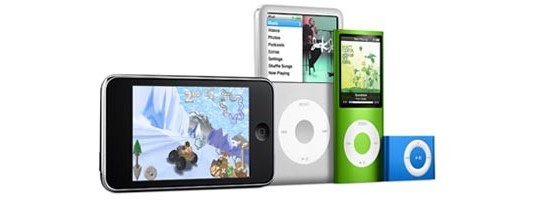
Nous utilisons les images fournies lors de l’installation de Prestashop, afin que vous puissiez recréer la scène. Pour commencer, rendez vous dans la catégorie « Catalogue >> Scènes ».
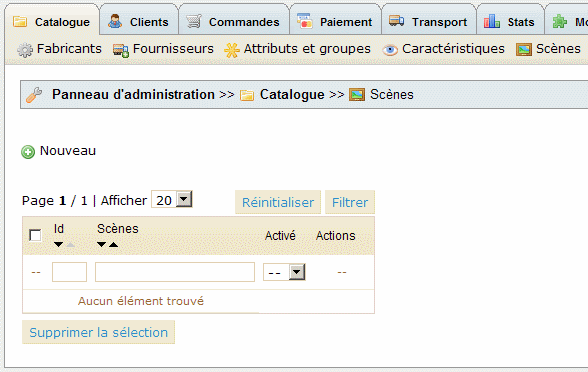
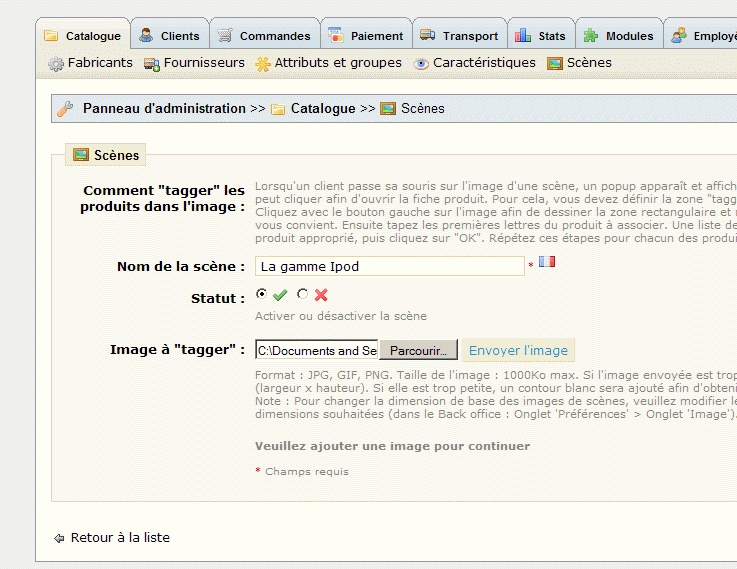
Création d’une nouvelle scène
Cliquez sur nouveau, puis donnez un nom à votre nouvelle scène. (ici : « La gamme Ipod »). Puis choisissez l’image servant à la scène.
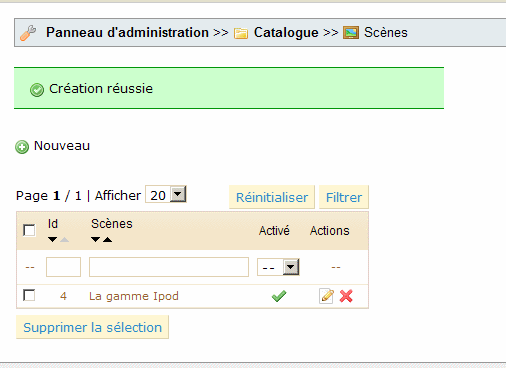
Une fois la gamme créée, cliquez sur celle-ci.
Création d’une nouvelle zone interactive
Maintenant que nous avons l’image, nous allons la rendre interactive. Pour être redirigé sur la fiche lorsque l’on clique sur l’Ipod Touch (le baladeur le plus à gauche), nous allons faire une sélection autour de l’objet en laissant le bouton gauche de la souris enfoncé et en délimitant ses contours.
Ensuite, il suffit de rentrer le nom de votre produit correspondant à la séléction. Une liste déroulante s’ouvrira et vous pourrez alors choisir votre produit.
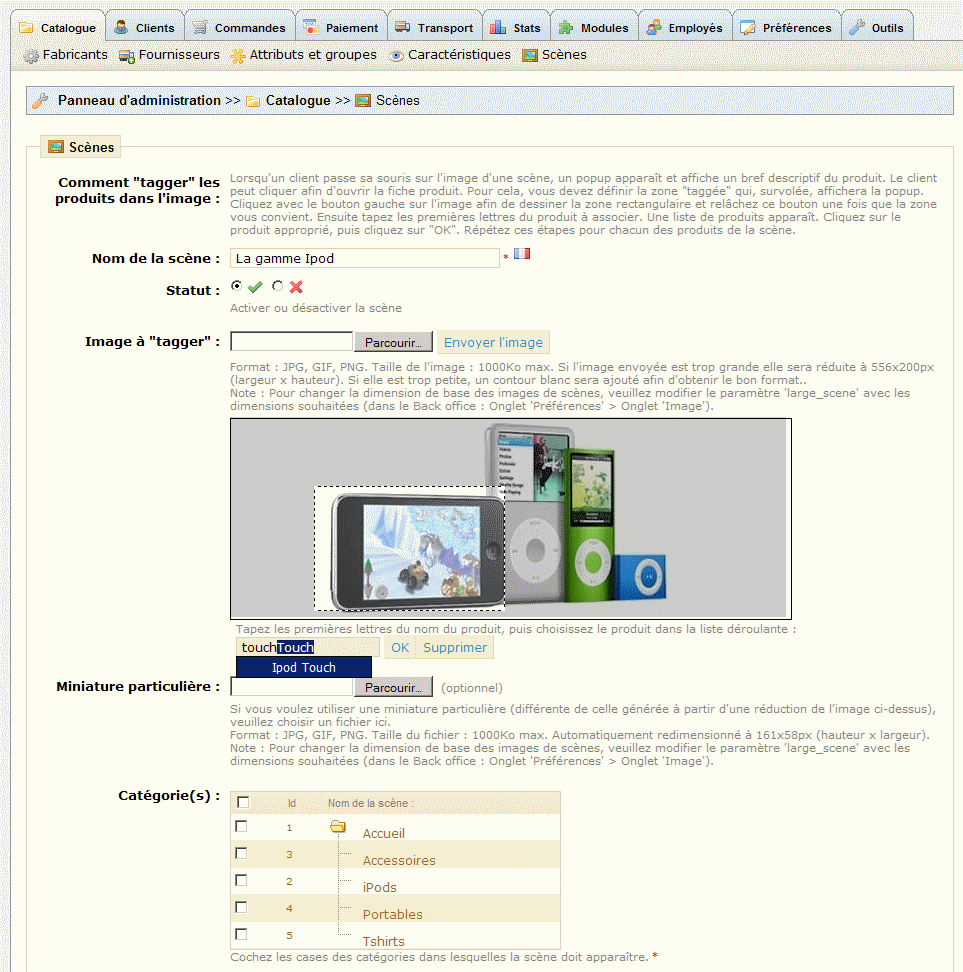
(La case ‘Miniature particulière’ vous permet de charger une miniature différente de celle générée par Prestashop).
Il vous faut alors répéter l’opération de sélection, autant de fois que vous avez de produits dans votre scène.
Affichage de la scène
En bas de page se trouve la section ‘Catégories’. Cochez les catégories dans lesquelles vous souhaitez voir afficher votre scène.
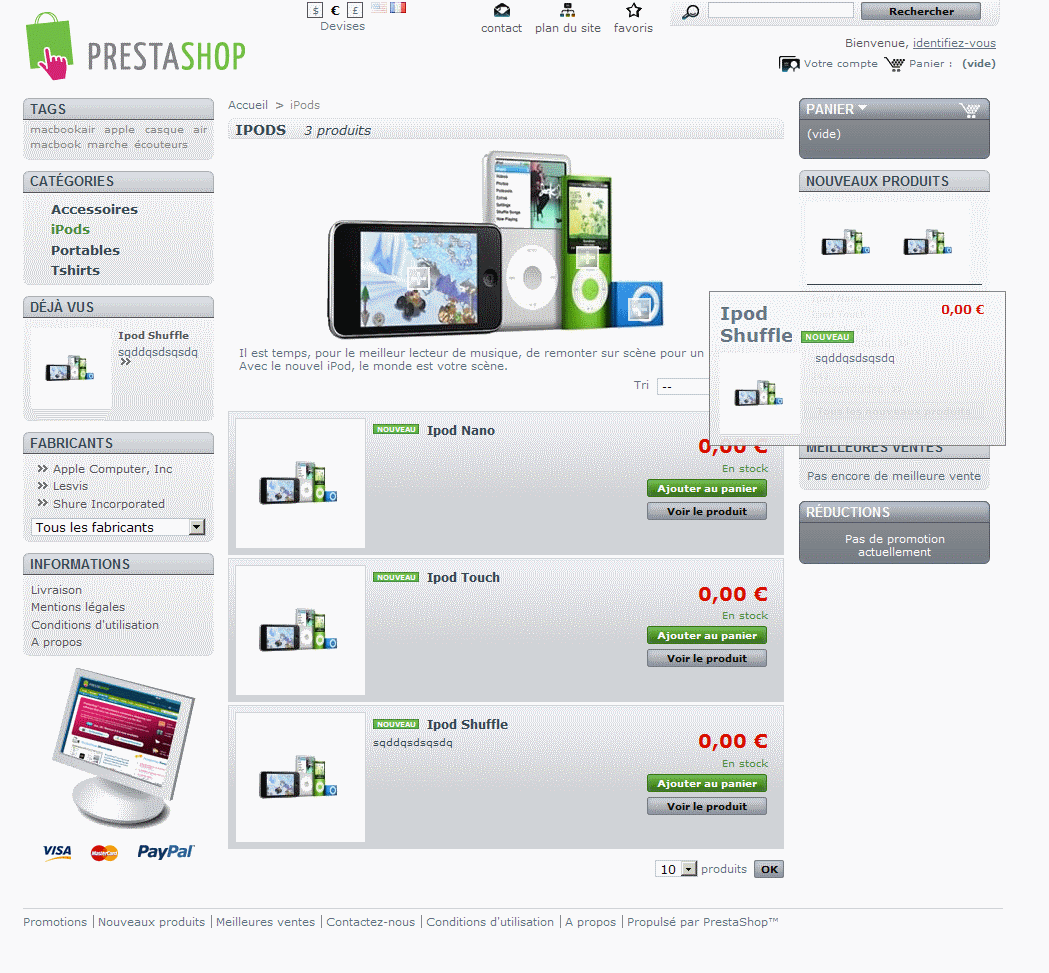
Dans notre cas nous avons choisi « Ipods ».
Voici le résultat :


Hello, je cherche comment changer la taille de ces scènes, sur mon theme je dois avoir 556 pixels de large et 200 de haut.
Voire même, ne pas ‘forcer la taille’ que je gérerais depuis PhotoShp.
Où chercher ?
Merci d’avance.
aaaahhh j’ai trouvé… dans administration>preferences>images
si ça peut aider
nous n’arrivons pas à intégrer une scene sur prestashop en accueil
C’est normal, ce n’est pas possible de le faire. Si vous le souhaitez nous avons un module pour cela. Vous pouvez nous contacter.
mc a écrit : nous n’arrivons pas à intégrer une scene sur prestashop en accueil
vous répondez : C’est normal, ce n’est pas possible de le faire.
Dans ce cas, rectifiez votre article au début :
« Pour mettre en avant cette gamme, vous souhaitez faire une image d’appel dans une catégorie, ou sur la page d’accueil. »
> Pourquoi préciser ‘ou sur la page d’accueil’ si ce n’est pas possible sans un module particulier ?
Et à la fin : « En bas de page se trouve la section ‘Catégories’. Cochez les catégories dans lesquelles vous souhaitez voir afficher votre scène (Accueil, pour l’index de la boutique). », en précisant que ce n’est pas possible pour l’accueil sans un module supplémentaire.
Je cherche à comprendre comment faire apparaitre une scène sur la page d’accueil sur la version 1.4.4.1, ce qui ne semble pas possible nativement, contrairement à ce que sous entend votre article.
Je suis donc arrivé sur cette page avec l’espoir d’une solution et j’ai été très déçu.
Dommage…
En effet, il y a une erreur dans l’article. C’est corrigé.
Bonjour,
Pour la première fois j’ai mis en place une scène avec 2 produits.
J’ai taggé mes produits et donc une croix s’affiche sur le scène sur mon site.
Du coup je me retrouve avec 3 croix que je ne parviens plus à retirer. Quelqu’un peut’il m’expliquer comment faire.
Merci d’avance
BL
Bonjour,
Je serais intéressée par le module pour mettre en page d’accueil des scènes, impossible à ce jour, par le BO.
Pour info, je suis en version 1.4.9
Merci par avance pour votre aide.