
Même si aujourd’hui, la majorité des consommateurs sur le net utilisent la carte bleue, une partie des clients sont craintifs quand à la saisie des données bancaires, surtout sur des commerces en ligne peu connus.
Pour palier à cette réticence, le système PayPal agit comme intermédiaire entre le client et le marchand. En effet lors d’achats utilisants cet intermédiaire, aucune coordonnées bancaires ne sont divulguées au commerçant, ainsi ces coordonnées sont seulement détenus par Paypal.
De plus, l’utilisation de Paypal, vous permet, dans un premier temps, de vous lancer sur Internet. Sans nécessairement utiliser une solution de votre banque. Qui peut, à vos débuts, ne pas être rentable.
Nous allons dans ce guide apprendre à utiliser le module Paypal ainsi que son paramétrage.
Installer une version de démonstration de Paypal sur votre boutique Prestashop
Tout d’abord nous allons créer un compte développeur (compte permettant de simuler des achats et des ventes via Paypal) sur https://developer.paypal.com.
Quand vous arrivez sur le site, cliquez sur le bouton « Sign Up Now ».
Rentrez vos informations dans le formulaire, cliquez sur Yes en bas du formulaire, enfin terminez l’inscripton en cliquant sur « Sign Up ».
Vérifiez vos e-mails et connectez vous avec les informations contenues dans l’e-mail de confirmation.
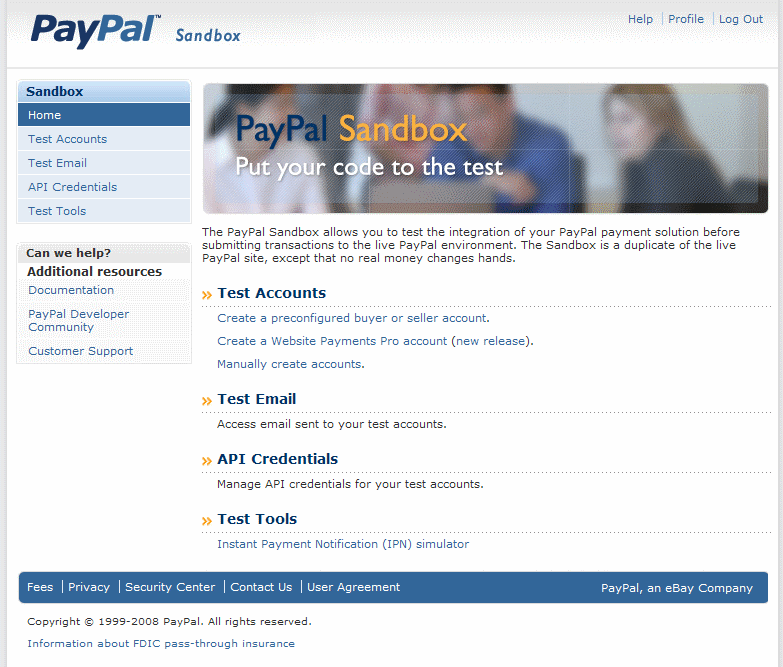
Une fois connecté, cliquez sur « Test Accounts ».
Nous allons créer deux comptes fictifs, un pour simuler un vendeur, et un pour simuler l’acheteur.
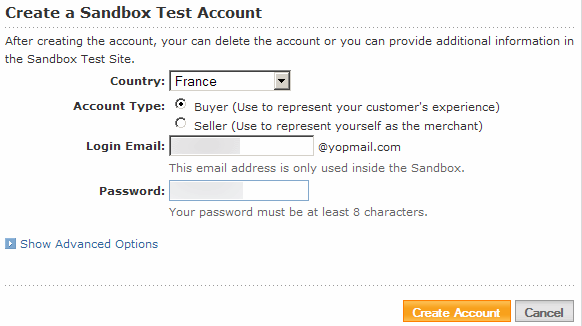
Dans la section « Create Account », cliquez sur « Preconfigured », choisissez comme pays la France, modifiez les informations si vous souhaitez sauf le « Account Type », laissez sur « Buyer ». Ce compte servira de test lors de l’achat d’un produit. Gardez le mot de passe de ce compte et cliquez sur « Create Account ».
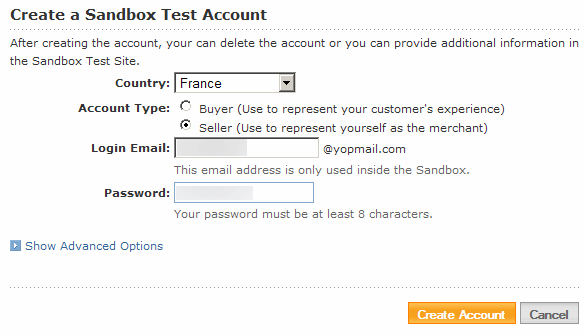
Revenez dans cette section « Test Account » et cliquez sur « Preconfigured », mais cette fois ci nous allons changer d’adresse ainsi que « Account Type » en « Seller ».
Retenez le mot de passe et les adresses des deux comptes. Ces informations devront être rentrées dans l’administration de PrestaShop.
Configuration du compte Seller.
Rendez vous dans le compte Seller, en cliquant sur Enter Sandbox Site.

Rendez-vous dans les préférences du compte. Puis dans « Préférences de Notification instantanée de paiement ».
Modifier les paramètres tels que :
Notification instantanée de paiement (IPN): Oui.
Url Notification instantanée de paiement (IPN) : https://votreboutique.com/modules/paypal/validation.php
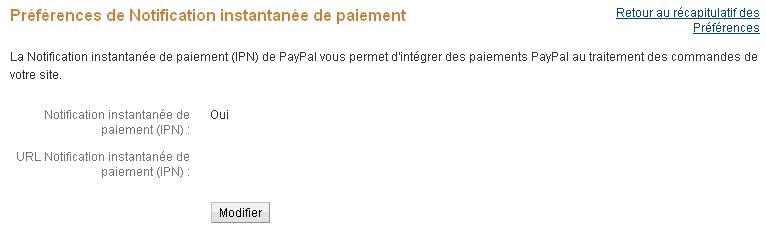
Retournez dans les préférences du compte. Puis dans « Préférences du paiement sur le site ». Configurez Retour automatique à Off et Payment Data Transfer à Off.
Configuration de votre boutique Prestashop pour communiquer avec Paypal
Ouvrez une nouvelle fenêtre de votre navigateur et rendez vous dans l’administration de PrestaShop dans la section « Panneau d’administration >> Modules » et cliquez sur « Installer » devant le module PayPay disponible dans la catégorie « Payment ».
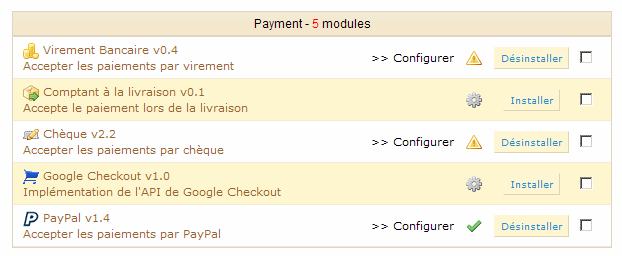
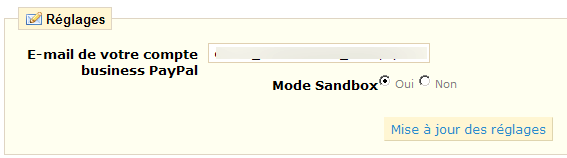
Cliquez maintenant sur « >> configurer ». Dans la case « E-mail de votre compte business PayPal » rentrez l’adresse inscrite pour le compte « Seller ».
N’oubliez pas de cocher le mode Sandbox (mode de test) au dessous ! C’est très important !
Une fois fait, cliquez sur « Mise à jour des réglages ».
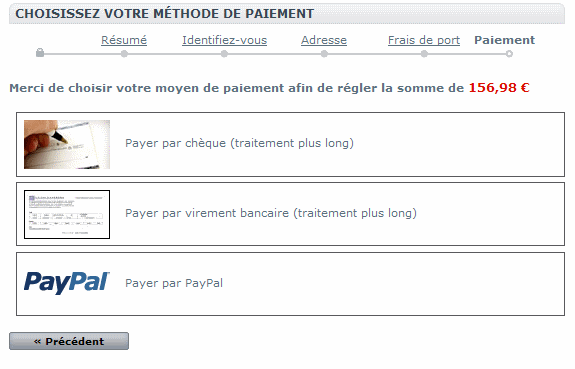
Maintenant nous allons nous connecter avec un compte client et acheter un produit. à€ l’étape de la sélection de la méthode de paiement, cliquez sur PayPal.
La page PayPal va s’ouvrir et vous devrez rentrer les informations de connexion du compte « Buyer » précédemment crée. Une fois connecté, vous n’avez plus qu’à cliquer sur « Payer ».
Vous venez de passer une commande sur votre site. Vous pouvez alors voir dans les commandes de votre administration Prestashop, celle que vous venez de passer.
Installer Paypal sans le mode sandbox
Vous pouvez, après vos tests, retournez dans la configuration du module Paypal.
Désactivez le mode Sandbox et rentrez votre vraie adresse Paypal, qui activera réellement l’option de payement PayPal.
N’oubliez pas de configurer votre compte Paypal comme vous avez configuré le compte Buyer.


bonjour ce tuto es super intéressant cependant je bloque des le début, j’ai créer mes deux comptes comme indiqué: seller et buyer,
et qd je clique sur buyer, ensuite Enter Sandbox Test Site. paypal m’ouvre une page sand box tout en haut je vois que je suis connecté avec l’adresse mail indiqué cependant, la page qui s’affiche na rien a voir avec la suite dont vous mettez le print!
elle m’affiche une page en dessous avec du style inscrivez vous ou connectez vous…! donc j’entre l’adresse email, et le mot de passe generer sur le site sandbox, et la message d’erreur comme quoi c’est pas la bonne identification ( mail ou mdp) via ce message:
Ces informations ne correspondent pas à celles figurant dans nos registres. Si vous avez oublié votre mot de passe, réinitialisez-le en cliquant sur Mot de passe oublié.
en gros pas moyen de continuer la marche a suivre du tuto car on arrive absolument pas directement sur la phase:http://www.magavenue.com/blog/wp-content/uploads/articles_max/paypal/paypal1.jpg
mais sur celle la pour moi:
http://www.vosfichiers.com/images/jdv1239371266z.jpg
merci de m’indiquer la marche a suivre pour pouvoir installer paypal sur mon site
bonne journee
Bonjour Kelly.
Nous avons sauté l’étape de l’identification, car elle nous semblait sans intérêt.
Votre démarche est la bonne, une fois que vous cliquez sur « Enter SandBox site », vous devez rentrer vos identifiants tels qu’ils sont donné dans la page Sandbox. L’identification est donc différente suivant si vous vous connectez sur le compte buyer ou seller. Faites attention, lors de la copie de l’email que vous donne Paypal, il se peut qu’un espace s’insère. Veillez donc à vérifier les données (de préférences, tapez les vous même).
j’ai tout essayer j’ai tout retaper manuellement, effacer recréer les comptes nada, rien ne fonctionne paypal refuse que j’accède au compte test!
et a force davoir essayer sur le compte avec ladresse mail de buyer, il m’indique un numero de tel a appeler!
est ce un bug de paypal et de la sandbox?
en tout cas je ne peux rien faire, je vais donc installer paypal sans le mode sand box en suivant votre tuto:
« Installer Paypal sans le mode sandbox
Vous pouvez, après vos tests, retournez dans la configuration du module Paypal.
Désactivez le mode Sandbox et rentrez votre vraie adresse Paypal, qui activera réellement l’option de payement PayPal.
N’oubliez pas de configurer votre compte Paypal comme vous avez configuré le compte Buyer. »
En esperant que d’autre personne n’est pas le meme probleme que moi!
MErci de votre reactivité et de votre disponibilité en tout cas!
Bonjour,
j’ai suivi la procédure jusqu’à la configuration du compte Buyer. Ensuite, je suis bloqué, il est impossible de configurer les préférences. Je pense que le site a changé depuis, j’ai cherché mais je n’arrive pas à trouver comment changer ces préférences. Pourriez-vous m’aider à trouver ?
Merci d’avance !
Bonjour,
Après vérification, le site ne semble pas avoir changé.
Une fois que vous avez créé le buyer, cliquez sur le bouton orange ‘enter sandbox test site’ en dessous des différents comptes tests.
Puis sur connectez-vous. Prenez l’adresse du buyer (en faisant attention qu’un espace ne se soit pas glissé). Puis la configuration peut se faire normalement.
En fait, j’arrive à me connecter sans problème. Mais quand je me rends dans les préférences du compte, je ne trouve pas “Préférences de Notification instantanée de paiement”, c’est pour cela que je disais que le site avait peut-être changé.
Je reviens de faire le test, et une fois après avoir cliqué sur Préférences, dans la colonne de droite « Préférences des ventes », il y a bien un lien « préférence de notification instantanée de paiement ».
Etes vous bien sur un compte business et non personnel ?
Effectivement, j’étais dans un compte personnel.
Tout a fonctionné ensuite.
Merci beaucoup pour votre réactivité.
Bonjour
j’ai moi aussi ce probléme « récurrent »
Business Unverified Disabled Disabled Reset
Personal Unverified Disabled N/A Reset
J’ai TOUT essayer…mais je n’arrive à rentrer dans mon buyer.
Je suis aller dans « »enter sandbox test site »
– J’ai supprimé mes comptes refait des comptes. On s’est jamais mes noms.
J’ai bien lu les explications et les problémes qu’avait rencontrer d’autre utilisateur ..mais Nan
Si vous avez une idée merci
Bonjour,
Si vous me dites, que vous avez vraiment tout essayé, je ne sais que vous dire !
L’étape n’est pas vraiment obligatoire, elle permet juste de faire des tests. Si vraiment vous n’y arrivez pas, rentrez votre véritable adresse Paypal. Vous vous passerez du test. Néanmoins pour vous assurez que la liaison fonctionne, vous pouvez créer un produit factice à petit prix (10cts) et l’acheter avec un compte client.
Salut,
En fait il me semble qu’il y a une erreur dans le tuto, ce qui explique que certains internautes (Ben par exemple, et Zeb aussi j’imagine) qui l’ont lu ne soient pas parvenus à leur fin.
=>Dans le tuto il est écrit « configuration du compte Buyer ». C’est évidemment du compte Seller qu’il sagit en fait. Depuis le compte Buyer la section “Préférences de Notification instantanée de paiement” n’existe pas, et pour cause un acheteur ne reçoit pas de paiement.
Le reste du tuto a l’air correct, du moins pour moi ça a marché (mise à part cette inversion buyer seller évidemment).
Julien
J’ai pas reéssayer depuis pas mal de temps…
Bonjour
Je confirme il y a une erreur dans le tutorial
C’est bien compte Sellers qu’il faut configurer.
Merci pour votre tuto
zeb
Merci pour ce tuto, je vais le suivre à la lettre et éventuellement le compléter si je coince dessus.
Bonjour,
Merci pour vos précieux renseignements.
De mon côté, j’ai tenté vainement de mettre en place le paiement par CB à l’aide du module Paypal V2 et du module API.
J’ai ouvert un compte business et paramétré les modules (module Paypal V2 et PaypalApi) suite à la génération des codes api dans paypal : utilisateur, mot de passe signature
Voici l’erreur retournée à l’occasion de mes tests.
Paypal ne m’a pas encore donné de solution pour ce type d’erreur.
Avez vous une solution ?
Je pense que d’autres utilisateurs de ce module doivent rencontrer ce type de problème.
Mecir pour votre collaboration
********************************
Merci de vous reférer aux logs :
1. Ouvre une nouvelle connection vers ‘api-3t.paypal.com/nvp’
2. Connection réussie avec la méthode cURL
3. Envoie des paramètres :
4. METHOD=SetExpressCheckout&VERSION=53.0&PWD=*********&USER=contact_api1.phoneboutik.fr+&SIGNATURE=*********&Amt=9&PAYMENTACTION=Sale&ReturnUrl=https%3A%2F%2Fwww.phoneboutik.fr%2Fmodules%2Fpaypalapi%2Fpayment%2Fsubmit.php%3FfromPayPal%3D1&CANCELURL=https%3A%2F%2Fwww.phoneboutik.fr%2Forder.php&CURRENCYCODE=EUR&NOSHIPPING=1&SOLUTIONTYPE=Sole&LANDINGPAGE=Billing&LOCALECODE=fr&HDRIMG=https%3A%2F%2Fwww.phoneboutik.fr%2Fimg%2Flogo_phoneboutik_paypal.gif
5. Envoie réussi avec la méthode cURL
6. Réponse PayPal :
7. TIMESTAMP -> 2010-10-31T22:12:52Z
8. CORRELATIONID -> 6f3c50923d33
9. ACK -> Failure
10. VERSION -> 53.0
11. BUILD -> 1553277
12. L_ERRORCODE0 -> 10002
13. L_SHORTMESSAGE0 -> Security error
14. L_LONGMESSAGE0 -> Security header is not valid
15. L_SEVERITYCODE0 -> Error
16. PayPal a retourné une erreur
**********************************
Merci pour votre collaboration
Bonjour,
Ne pas tenir compte de mon précédent message.
Il s’agissait d’une erreur de paramétrage et je confirme que le module paypal V2 associé avec le module paypalapi fonctionnent correctement et permettent les règlements soit par CB soit par compte paypal.
phoneboutik.fr
grâce à votre tuto d’installation de prestashop en local, tout a bien fonctionné. J’ai fini mon site et suis en train de tester la sandbox paypal toujours en local mais là problème : je n’ai aucune trace de la commande dans le back office et le panier reste plein, ce qui semblerait indiquer que la commande n’est pas passé même si il n’y a pas eu de problème de paiement au niveau de la sandbox. Pas de notification de paiement non plus; D’où cela peut-il venir à votre avis ? Merci.
Si vous êtes en local, Paypal ne pourra pas accéder à votre ordinateur pour envoyer la réception de la commande.
C’est donc normal.
Je coince à partir de la partie « config du compte buyer », dans mon compte je ne trouve pas « préférences de notif instantanée de paiement » est ce que qqun pourrait me renseigner svp?
Je suis complètement coincé !
Je passe des journées sur ce paypal, et rien ne fonctionne !!! HELP ME !
Je pense avoir tout configurer comme vous le dîte, seulement, lors d’une commande rien ne se passe. 9a débite l’argent mais pas ma commande, le bouton retour me ramène à mon panier !
ju
De mon côté petit problème pour l’obtention du statut « paiement validée » avec sandbox.
Lorsque je passe mas commande et que j’utilise paypal sandbox pour le paiement, tout à l’air de bien se dérouler. Une fois le paiement effectuer je suis de retour sur la page de confirmation de commande ma boutique.
Mais le statut de la commande est alors : « en attente de paiement par paypal ». Lorsque je me connecte sur sandbox, je peux accéder à l’ensemble de ces transactions qui sont spécifiées comme étant « en cours de validation ». Si j’utilise alors le lien qui est fourni pour émuler la validation, le statut passe à terminée sur Sandbox, mais ne bouge pas dans la BO prestashop… je suis coincé, je ne trouve pas comment faire.
Bonjour,
Essayez de voir du côté du firewall du serveur,
j’ai du ajouter cette autorisation pour que cela fonctionne (après plusieurs heures de recherche…) :
iptables -t filter -A OUTPUT -p tcp –dport 443 -j ACCEPT
BP
Très bon article (qui m’a énormément aidé) mais il y a une légère erreur.
A 2 reprises, le terme BUYER est utilisé au lieu de SELLER.
1/ Le titre de la section « Configuration du compte BUYER. » devrait être « Configuration du compte SELLER. »
2/et la ligne (qui suit le titre précédent) « Rendez vous dans le compte BUYER, en cliquant sur Enter Sandbox Site » devrait être « Rendez vous dans le compte SELLER, en cliquant sur Enter Sandbox Site »
Merci pour ce tuto très utile.
Quelques intitulés ont changé dans l’interface de Paypal avec des traductions en français mais on s’y retrouve sans peine.
Retour de ping : [Presta] Mode test de paypal |
Bonjour, j’espère que vous pourrez m’aider car je suis bloquée un point. J’ai acheté un hébergement chez Infomaniak et j’ai pu commencer une boutique avec Prestashop. Je souhaite installer Paypal, mais prestashop me demande que je sois inscrite chez Paypal en France. Le soucis est que j’habite en Suisse et je pense que je dois m’inscrire au registre du commerce vu que je vais vendre des créations de vêtements et bijoux. Comment puis-je installer Paypal dans ce cas ?
Vous pouvez utiliser avec le module un compte Paypal Suisse.
Bon tuto merci
Nice job !
salut
merci pour ce tuto mais un truc m’échappe.
J’ai créé deux comptes, (buyer – seller ou acheteur – vendeur en clair) puis je vais sur le compte buyer (acheteur) pour le configurer comme indiqué au tiers de cette page sous le titre : Configuration du compte Buyer.
Pourquoi configurer le lien IPN du compte buyer? Normalement c’est pas celui du seller? c’est lui qui a une boutique non?
Si vous aviez une minute pour me confirmer ou m’indiquer ce qui est et que je pense n’est pas logique? merci et continuez comme cela, prestashop est tellement difficile pour les non initiés que sont les 05% d’utilisateurs gratuits que nous sommes.
Bonjour,
C’est en effet une coquille dans notre article. C’est bien le compte Seller qui faut configurer.
Bonjour,
J’ai essayé d’installer Paypal sur ma boutique en local, mais dès que je veux accéder à Paypal via le site j’ai une erreur type :
Error occurred:
Veuillez contacter le marchant:
PayPal response:
->
Est ce que cela peut venir de l’Url Notification ?
Malheureusement en local, j’ai une adresse du genre
http://localhost/prestashop_1.5.3__pour_tuto/modules/paypal/validation.php, qui n’est pas au gout de paypal donc impossible de valider cette adresse…
Auriez vous une idée ? j’utilise la dernière version de prestashop (1.5.3),
Merci !
Bonjour, Installer Paypal semble possible sur votre tuto… Depuis 2006 J’ai installé Paypal sur OsCommerce, sur Creloaded, sur Magento, sur WordPress différents modèles de shopping cart, dans tous les cas il suffit de rentrer les données API ou l’adresse Email du compte Business et hop le tour est joué… Mais sur la PrestaShop Version 1.5 RIEN RIEN RIEN. Le même message d’erreur cité plus haut…. et c’est tout. Je cherche désespérément une solution. J’interpelle Prestashop par téléphone, je tombe sur une charmante jeune voix féminine mais les informations s’arrêtent là… « Ce n’est pas Prestashop, contactez Paypal » ce qui est fait illico. Passage obligé par un formulaire, malgré l’appel téléphonique, 24heures plus tard le message en retour tombe avec des liens sur le web (que j’avais trouvé par ailleurs) sur la manière d’installer Paypal dans PRESTASHOP… La culture franco-française est insupportable, je pense que les développeurs de PrestaShop ont l’impression d’avoir inventé le BigBang et leur attitude, une morgue suffisante qui caractérisent les petits, ceux qui pensent détenir LA et l’Unique vérité. En oubliant au passage que les cimetières sont peuplés de gens qui sont enterrés comme les autres entre quatre planches nonobstant la supériorité de ces sachants éphémères. Typiquement français baigné dans l’huile de l’élitisme. Alors la communication de PrestaShop si vous oubliez votre piédestal ? A moins que vous soyez radicalement anti-américain et le-made-in-France-à-tout-prix vous incite à être anti-Paypal cet hégémonique mastodonte qui ne paye pas de taxes en France ???? Vu et parcouru les forums le mal est profond et faut-il downgrader sa plateforme Prestashop avec les versions 1.4 pour pouvoir avoir Paypal ????
Bonjour,
Nous ne sommes pas Prestashop. Seulement une agence essayant d’aider les utilisateurs à utiliser Prestashop.
C’est sûr que le ton de votre message ne donne pas spécialement l’envie d’aider.
Concernant le baratin sur la mentalité française, je pense avoir vécu assez longuement à l’étranger, pour ne plus avoir l’envie de lire ce genre d’ineptie.
Bref, si vous souhaitez de l’aide, il faudrait nous en dire un peu plus sur votre problème, et un peu moins sur votre opinion.
salut Belmere,
je suis pas un pro, j’ai installer presta 1.5.2 il y a 4 mois et j’y connaissais rien du tout, pourtant, après 3h de découverte et de documentation sur le net et des sites comme celui-ci, j’y suis arrivé (à paramétrer Paypal). Donc, avec autant d’expérience, tu devrais y arriver aussi. Le truc que je sais pas faire et vérifier par la même occasion, c’est le fonctionnement car je n’ai pas encore de N° de TVA et de là, je peux pas avoir un compte business pour de vrai. Mais via un faux « proposé » par paypal, j’y suis arrivé. Alors râle pas sur le programme gratuit quand tu sais pas y faire. C’est déjà trop bien d’avoir un outil pareil pour 0€. Au pire, tu payes un spécialiste et cela sera tout de même moins cher que de te payer un vrai site d’E-commerce. Si tu as un compte business, c’est que tu es un pro, donc c’est déductible ce genre de frais.
Je reconnais tout de même que j’ai un poil galéré avant de trouver exactement où introduire le n° API de paypal dans Presta.
tu vas dans les modules
tu installes le module prestashop
puis tu vas sur ce même modules le configurer
là tu suis les étapes et tu y reviens pour introduire ton N°API.
je peux pas t’aider plus car je me rappelle déjà plus comment j’ai fait. mais j’ai revenu plusieurs fois sur ce module en mode config car c’est là qu’il faut le faire. Et oublie pas d’activer le module pour ta boutique hein?
Cherche un peu partout et acharne toi sur ton presta, pas sur les créateurs qui ont surement autre chose à faire que du cas par cas.
Bonne chance
RE
Déjà
dans le menu module -> module
colonne gauche : catégories -> paiements
dans la liste : paypal
si pas installé -> installe le
si déjà installé -> configurer
là tu as 3 étapes
1° choisi d’ajouter paypal
2° crée un compte en cliquant sur le bouton
Si tu as déjà un compte (ce que tu sous-entends)
reviens sur la page et tu verras à l’étape 3 il te demande maintenant les N° API username, pass et signature.
Ben t’as plus qu’a remplir les champs. Les n° api sont qque part dans ta session Paypal. Mais seulement quand tu le demandes à Paypal et SI tu as un n° entreprise (tva)
voilou…
Bonne chance et si c’est pas cela, explique mieux voire mets des photos de là où tu cales.
Bonjour,
Excellent tuto et merci. Seul problème, c’est que depuis une bonne heure, j’ai rempli le formulaire sur la page: https://www.paypal.com/webapps/merchantboarding/webflow/unifiedflow?execution=e1s1
et rien ne ce passe!!! Me serais-je planté de site? Pourtant j’ai bien cliqué sur le lien du tuto…
Merci de m’aider si je me suis planté
Salutations
I was very pleased to discover this page. I need to to thank you for ones time for this fantastic read!!
I definitely enjoyed every little bit of it and I have you book marked to look at new information
in your site.